
Accessing Rapid PDF Upload #
The Rapid PDF Upload page is important for a project’s Owner, Co-Owner, or Librarian. However, any team member can have access to Rapid PDF Upload by enabling this feature on their role.
To enable access to Rapid PDF Upload, scroll down to the Team Members section of the main project dashboard and click on the modify icon to the right of their name and information. Next, click on the switch beside Access to Rapid PDF Upload to enable or disable the feature for the user. Then click Save.
You can also enable access to Rapid PDF Upload when inviting team members by toggling the switch to ON for Access to Rapid PDF Upload when selecting their role(s).
Additionally, as a project Owner or Co-Owner, you can invite other users and add them with a Librarian role. A Librarian assists the Owner or Co-Owner in managing the files of the project. In this scenario, a Librarian can assist the Owner in uploading PDFs. When a Librarian is invited, the Rapid PDF Upload tab is made available on the dashboard.
See User Roles and Inviting Members for more information.
Assigning an Existing Member with Librarian Role #
If you would like to assign the role of Librarian to an existing member of the project, you can do so by modifying the user’s role.
See Modifying User Roles for more information.
To access the Rapid PDF Upload page, click Reports > Rapid PDF Upload. If you are a user (e.g. Viewer) with access to Rapid PDF Upload, your dashboard will have a Rapid PDF Upload button.
Rapid PDF Upload Dashboard and Features #
In Rapid PDF Upload, you will see the following information:
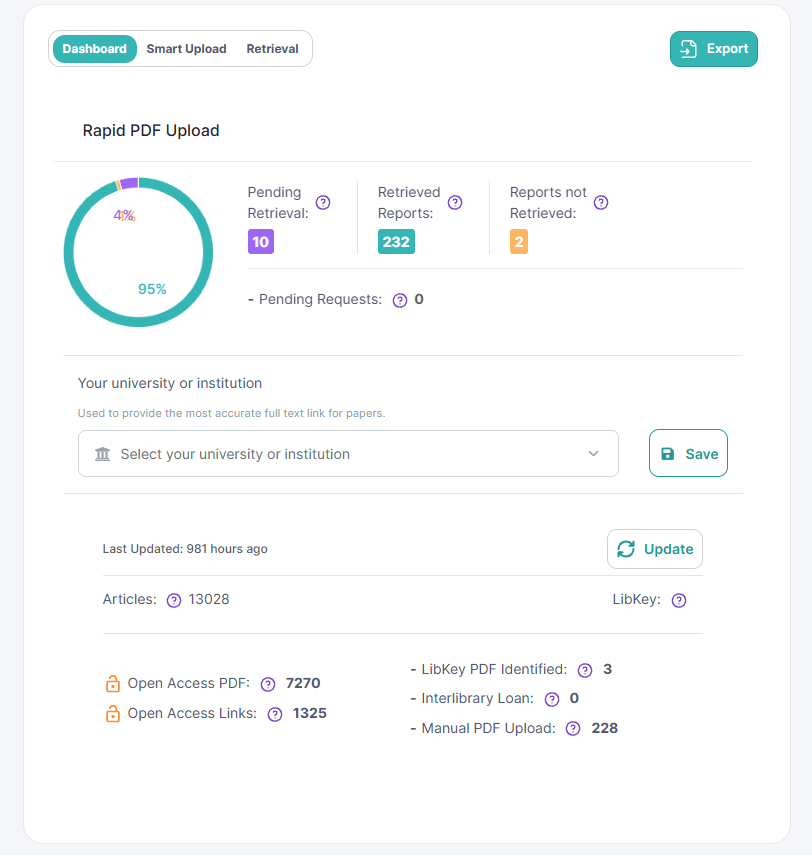
Dashboard: Provides a general overview of the full-text PDF status for all records that have been included in title/abstract screening and need full-text screening. If your university or institution has LibKey access, you can add it here. See LibKey Integration below for more information.
Smart Upload: PICO Portal’s Smart Upload system allows batch uploading of retrieved PDFs and automatic matching to their respective citations.
Retrieval: The menu for viewing articles and where you can filter to specific statuses by selecting an option from the drop-down menu.
Pending Retrieval: Indicates citations that need full-text PDF retrieval.
Retrieved Reports: Indicates which citations have successfully had a PDF retrieved, either by PICO Portal or manually by the user.
Reports not Retrieved: Reports that have been excluded because no full-text PDF could be found or accessed.
Export: Allows you to export the citations. See Export below for more information.
LibKey Integration #
LibKey seamlessly integrates with popular library discovery platforms. If you are a licensed user and your institution supports LibKey, you can use this feature to access full-text PDFs of included articles.
To add your university or institution, navigate to Reports > Rapid PDF Upload and search for it in the drop-down menu under Your university or institution.
If your university or institution is not on the list, please contact support@picoportal.org and provide the 3 to 4 digit library code.
Export #
In Smart Upload, you have the ability to export lists of citations for your recordkeeping full text retrieval. You can export based on one, or all, of the following filters:
- Pending Retrieval
- Retrieved Reports
- Reports not Retrieved
- Pending Requests
Export supports the following formats:
- Excel
- CSV
- EndNote
Pending Retrieval #
All of the citations that do not have a PDF are listed under Pending Retrieval on the Rapid PDF Upload dashboard. Click on the number under Pending Retrieval on the Rapid PDF Upload dashboard, or click on the Retrieval tab and select Pending Retrieval from the drop-down menu.
PICO Portal will try to automatically retrieve PDFs for Open Access articles and will match them with the citation based on the title, authors, DOI, and other information. Any articles that cannot be retrieved, even if they are Open Access, will be displayed in the Pending Retrieval tab.
Note: Some Open Access articles are not automatically retrieved due to a firewall, CAPTCHA, or other process put in place to prevent automatic downloading.
The Pending Retrieval tab displays a list of the articles that need a PDF uploaded in a grid format. The grid has the following columns:
CiteID: Displays the PICO Portal identifier for the citation.
Status: Displays if the PDF retrieval is Pending, Retrieved, or if a Loan has been requested (i.e., ILL). You can also select to Skip a record if it should be excluded, or if the full text PDF for it could not be found.
Method: Displays the method used to upload the PDF: MANUAL or MAGIC (i.e., Magic PDF Upload). Provides a drop-down list to select a status for the citation.
Completed by/on: Displays who uploaded the PDF. If you hover over the user’s name, the date and timestamp are displayed for when the PDF was uploaded.
Actions: Displays options for viewing the PDF in a new tab, adding supplemental materials, resetting (removing) the PDF, replacing the PDF, and searching Google Scholar.
Retrieved Reports #
All of the citations that have PDF are listed under Retrieved Reports on the Rapid PDF Upload dashboard. Click on the number under Retrieved Reports on the Rapid PDF Upload dashboard, or click on the Retrieval tab and select Retrieved Reports from the drop-down menu.
The Retrieved Reports tab displays a list of the articles that have a PDF uploaded in a grid format. The grid displays the same information as described above for Pending Retrieval.
Reports not Retrieved #
For citations where a full text PDF could not be retrieved, you can exclude/omit the citation by selecting Skip from the Status drop-down menu. This will exclude the article from Full-Text Review with the reason “Exclude – Omit articles from review”.
Click on the number under Reports not Retrieved on the Rapid PDF Upload dashboard, or click on the Retrieval tab and select Reports not Retrieved from the drop-down menu.
The Reports not Retrieved tab displays a list of the articles that have a PDF uploaded in a grid format. The grid displays the same information as described above for Pending Retrieval.
Pending Requests #
Pending Requests shows the list of citations where you have made a request or pending purchase of a PDF outside of PICO Portal (e.g., through Inter-Library Loan (ILL)). This feature is for organizational purposes so you can more easily keep track of which citations are still pending a PDF upload and which ones have active requests.
Once you acquire the PDF, you can upload it to the citation by clicking the ellipses (…) under “Actions” and selecting “Manual PDF Upload”.
Click on the number beside Pending Requests on the Rapid PDF Upload dashboard, or click on the Retrieval tab and select Pending Requests from the drop-down menu.
The Pending Requests tab displays a list of the articles that have a PDF uploaded in a grid format. The grid displays the same information as described above for Pending Retrieval.
Smart Upload #
The Smart Upload tab allows you to batch upload your retrieved PDFs instead of manually attaching them one-by-one to the individual citations listed in Pending Retrieval.
This feature allows for both single and multiple file uploads, and only supports PDF files – uploading other formats, such as Word or JPEG, is not supported.
Note: For large collections, consider dividing them into separate batches to enhance the process (we recommend batches of 10 to 20 PDFs at one time).
There are no file naming requirements – the PICO Portal system will automatically upload and match the PDFs to their respective citation based on title, abstract, author(s), DOI, etc. Any articles that cannot be matched will be displayed in the Pending Retrieval tab for you to add the PDF manually.
Note: Upload times may vary based on your Internet connection and speed, as well as file size.
To batch upload PDFs:
Click the Upload PDF(s) area, select your file(s), and then click Upload Files. You can also drag and drop your file(s) into the Upload PDF(s) area and click Upload Files.
To manually upload PDFs:
See Upload a PDF to Individual Citation below.
Upload a PDF to Individual Citation #
In addition to Rapid PDF Upload, you can upload full-text PDFs directly to each individual citation in Pending Retrieval.
To upload a PDF to an individual citation:
- Click the number under Pending Retrieval, or click the Retrieval tab and select Pending Retrieval from the drop-down menu.
- You can either search for a specific CiteID or follow the list order.
- Click on the ellipses (…) to the right of the citation under “Actions” and select Magic PDF Upload (if available – see Magic PDF Upload below for more information) or Manual PDF Upload if you have the PDF saved.
- Click on the Upload Full-Text PDF section to search for the PDF on your computer. Alternatively, you can drag and drop your file into the Upload Full-Text PDF section.
- Click the Upload File button.
Replacing a PDF #
If you have uploaded an incorrect PDF and want to replace it:
- Click the number under Retrieved Reports, or click the Retrieval tab and select Retrieved Reports from the drop-down menu.
- Search for the CiteID where you would like to replace the PDF.
- Click on the ellipses (…) to the right of the citation under “Actions” and select Replace PDF.
- Click on the Upload Full-Text PDF section to search for the PDF on your computer. Alternatively, you can drag and drop your file into the Upload Full-Text PDF section.
- Click the Upload File button.
Magic PDF Upload #
In Pending Retrieval, click on the ellipses (…) to the right of the citation under “Actions” to see if Magic PDF Upload is available. If not (grayed out), you will see the Manual PDF Upload option available instead.
If you click on the Magic PDF Upload link, the PICO Portal system will attempt to automatically download and upload the PDF for you. If you need to keep track of your PDFs and how they are retrieved, we recommend not using this feature.
Note: Magic PDF Upload may not work on some citations due to firewall, CAPTCHA, or other processes put in place by the publisher to prevent automatic downloading. In these cases, you will need to locate the PDF, download it, and manually upload the PDF to the citation in PICO Portal (or use Smart Upload)


